

| Slide Editor |


|
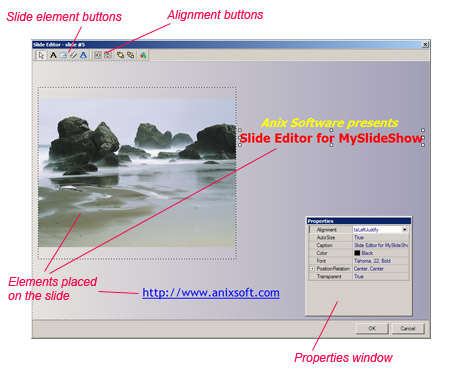
The Slide Editor is available in MySlideShow Gold. The Slide Editor window allows you to place additional elements like text boxes, web links, small images and video clips on slides. The Slide Editor appears as the Slide Editor and Logo Editor items under the SlideShow menu and as the Slide Editor item in the slide list right-click popup menu. The Slide Editor places your elements on the selected slide. The Logo Editor places your elements on all slides in the current project. It's useful if you want to place your logotype text or image (semi-transparent images in PNG format look cool) on your slides.
To place a text box element:
-
Select the text box toolbar button.
- Click on the slide.
- Change the Caption, Color, Font properties in the Properties window.
- Change the element position dragging it.
To place a image element:
-
Select the image box toolbar button.
- Click on the slide.
- Select an image file on your hard drive by the ImageFilePath property in the Properties window.
- Change the element position dragging it.
To place a video clip element:
-
Select the video box toolbar button.
- Click on the slide.
- Select a video file in AVI, MPEG-1 or WMV format on your hard drive by the VideoFilePath property in the Properties window.
- Change the element position dragging it.
Your slide show may be played on different computers with different screen resolutions. The slide elements will change their positions on the screen. You can control the element position by the PositionRelation property. By default, a slide element keeps the design-time pixel distance between its left-top corner and the slide center. You can tie an element to the left-top slide corner changing the PositionRelation property to (Left, Top).
To save the slide elements click on the OK button at the bottom of the window.